How to Audit Every Tag Firing on Your Site?
Last updated: 13 August 2026
Short answer: Open Chrome DevTools, filter the Network tab by the domains your vendors use, and reload the page with the console recording. Every tag that fires shows up as a network request. Do this on your homepage, a product page and your checkout confirmation — the three places where tag setups diverge most — and compare what you find against the tools your team believes it's running. The gap between those two lists is your problem.
Why nobody knows what's on their own site
Most tracking setups aren't designed. They accumulate.
An agency adds a Floodlight tag in 2021 and the contract ends. A developer hardcodes a Meta pixel because GTM was slow that week, and nobody removes it when the container version ships. A campaign needs a heat map tool for one quarter and the trial never gets cancelled. Someone installs a consent banner that fires after the tags it's supposed to gate.
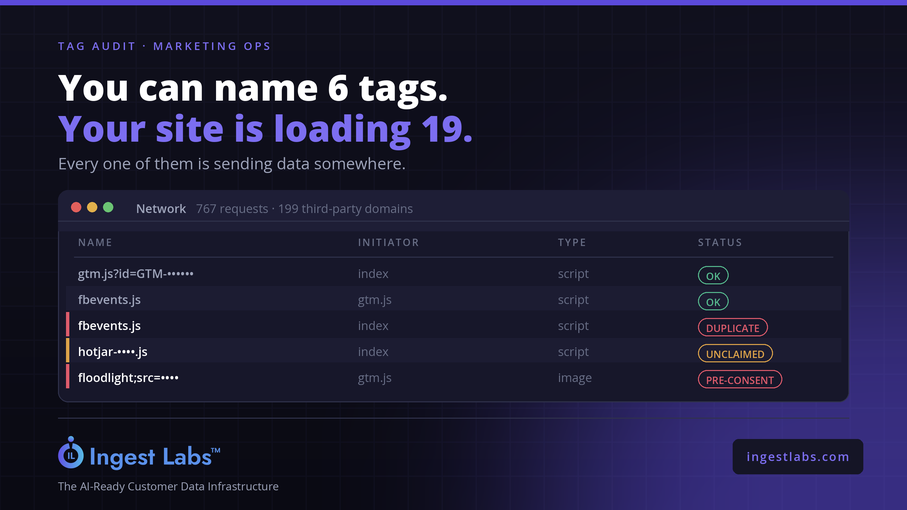
Three years on, the marketing team can name four tools. The site is loading nineteen.
This matters for reasons that go well past tidiness. Duplicate tags double-count conversions and quietly wreck your ROAS reporting. Tags that fire before consent are a GDPR exposure, not a hygiene issue. Every third-party request costs load time, and load time costs conversions. And redundant vendor calls send the same customer data to companies you no longer have a contract with.
The audit is the cheapest diagnostic in marketing ops, and almost nobody runs it.
What counts as a tag
Loose terminology causes half the confusion here, so let's be specific. A tag is any third-party code that executes on your site and usually sends data somewhere. That includes:
Analytics — GA4, Adobe, Mixpanel, Amplitude, Heap.
Advertising pixels — Meta, Google Ads, TikTok, LinkedIn, Pinterest, Reddit, Snap.
Conversion and attribution tags — Floodlight, GCLID capture, affiliate postbacks.
Tag containers — GTM, Tealium, Adobe Launch. A container is one tag that loads many.
Session tools — Hotjar, FullStory, Clarity, Lucky Orange.
Support and marketing widgets — chat, email capture, review platforms, personalisation.
Consent platforms — the CMP itself is a tag, and its load order determines whether everything else is compliant.
Note what isn't on this list: HTML meta tags — title, description, canonical, alt text. Those are SEO markup, a completely different thing that unfortunately shares the word. If that's what you're after, see meta tags for SEO.
Step 1 — Write down what you think is running
Before you look at anything, list the tools you believe are installed. Ask the paid team, the analytics owner and whoever manages the site.
Do this first and do it blind. The value of the audit is the difference between this list and reality, and you lose that comparison the moment you've seen the real data.
Most teams list four to eight tools. Most sites run fifteen to thirty.
Step 2 — The network tab pass
This is the core method, and it takes about ten minutes per page.
Open Chrome DevTools (Cmd+Option+I or F12) and go to the Network tab. Tick Preserve log so navigation doesn't clear it, and Disable cache so you see everything a first-time visitor loads. Now hard-reload the page.
You'll get several hundred requests. Filter to find the tags:
| Filter | Finds |
|---|---|
collect |
GA4 and Universal Analytics hits |
facebook or fbevents |
Meta pixel |
googleads or doubleclick |
Google Ads, Floodlight, re-marketing |
googletagmanager |
GTM container and its loads |
analytics |
catches most analytics vendors |
tiktok, linkedin, pinterest, snap, reddit |
social pixels |
hotjar, clarity, fullstory |
session recording |
For each hit, check the Initiator column. It tells you whether the tag was loaded by GTM or hardcoded in the page source — which decides how you remove it later. And open the request payload: a Meta pixel hit shows which event fired and which parameters it carried, which is where you find out your Purchase event is missing value and currency.
Faster alternative: run Site Intelligence instead. It captures real browser traffic and returns a full provider inventory with request counts — the same output as this step, across more pages, in under 24 hours. But do the manual pass at least once. Understanding what the tool is reporting is worth the ten minutes.
Step 3 — Audit three page types, not one
This is where most audits go wrong. People check the homepage, find it clean, and stop.
Tag setups diverge by page type. Check at least three:
Homepage — your baseline. Whatever fires here fires everywhere.
Product or key landing page — where content-specific tags and personalisation appear.
Checkout or confirmation page — where conversion tags fire, and by far the most important. This is where duplicate purchase events live, and a duplicated purchase tag corrupts every revenue number you report.
On a Shopify store, add the customer events / pixels layer — Shopify's checkout extensibility means tags can be registered in places the theme code doesn't reveal.
Build a simple matrix: tags down the side, page types across the top. The gaps and the unexpected ticks are your findings.
Step 4 — Hunt for duplicates
Duplicates are the single most common finding and the most damaging.
The pattern is nearly always the same: a tag hardcoded in the theme and deployed through GTM. Both fire. Both report. Your Meta dashboard shows two purchases for every one order.
Search the Network tab for repeated calls to the same endpoint within one page load. Two fbevents.js requests, or two GA4 collect hits with the same event name, is a duplicate. Then check whether server-side and client-side are both sending the same event without a shared event_id — that's the Conversions API version of the same bug, and it's easy to miss because each side looks correct in isolation.
A duplicate purchase tag doesn't just inflate a number. Meta optimises delivery against the events it receives, so double-counted conversions actively distort who your ads get shown to.
Step 5 — Check what fires before consent
Load the page in an incognito window with the Network tab recording, and don't touch the consent banner. Anything that fires while the banner is still sitting there is firing without consent.
Analytics before consent is a common finding. Advertising pixels before consent is a regulatory exposure. Order matters as much as presence: if your CMP loads after your GTM container, the gating is decorative.
Test the reject path too. Click "reject all" and reload. Tags that still fire are a real compliance problem, not a configuration preference. See consent management platform for how the gating is supposed to work.
Step 6 — Decide what to remove
You now have a list. Sort it into three:
Keep — actively used, owned by someone, contract current.
Remove — nobody can name the owner, or the contract ended. If no one claims it, it goes.
Investigate — you recognise the vendor but not why it's on this page.
For anything in "remove", find out whether it's in GTM or hardcoded before you touch it. Removing a GTM tag is a container change and reversible. Removing hardcoded script is a deploy.
Remove in small batches and watch your conversion reporting for a week after each. Occasionally a tag nobody claims turns out to be feeding something that matters.
What a manual audit still won't tell you
Be clear-eyed about the limits of what you've just done. You've checked a handful of pages by hand. You haven't covered:
Whether the same tag behaves differently across every page type at scale. Whether cookies are leaking PII or first-party identifiers into third-party requests. Whether your security headers — CSP, HSTS, X-Frame-Options — permit scripts you'd never approve. Whether your GA4 e-commerce implementation sends what it should versus what it does. How much of your conversion signal is client-side only, with no server-side coverage behind it.
A typical mid-size e-commerce site makes several hundred network requests to a couple of hundred distinct third-party domains. Six page types by hand is a day's work and you'd still be inferring the rest.
That's the gap Site Intelligence fills. Enter a URL, no install and no code access needed, and it returns a 13-section report inside 24 hours: a 0–100 Signal Score with an A–F grade, full provider inventory, duplicate and redundant call detection, consent compliance, cookie and PII leakage, security headers, client-side versus server-side coverage, and recommendations ranked by effort against impact. Most sites score below 60. There's a sample report if you want to see the output before submitting anything.
How often to re-run this
Quarterly for most teams. Monthly if you're actively adding tools, running multiple agencies, or shipping site changes weekly.
Also re-run after: a site redesign, a platform migration, an agency handover, and any change to your consent banner. Those four events break more tracking than everything else combined.
Frequently asked questions
How do I see what tracking tags a website is using?
Open Chrome DevTools, go to the Network tab, tick Preserve log and Disable cache, then hard-reload the page. Filter by vendor terms like collect, facebook, doubleclick or googletagmanager. Every tag that fires appears as a network request, and the Initiator column shows whether it was loaded by a tag manager or hardcoded.
What's the difference between a website tag and a meta tag?
A website tag is third-party code that executes and usually sends data to an external service — analytics, advertising pixels, session recording. A meta tag is HTML markup in the page head that describes the page to search engines and browsers, like the title tag or meta description. They're unrelated despite the shared word.
How do I know if a tag is firing twice?
Look for repeated requests to the same endpoint in one page load — two fbevents.js calls, or two GA4 collect hits with the same event name. The usual cause is a tag deployed in both the theme code and the tag manager. Server-side and client-side sending the same event without a shared event_id produces the same double-count.
Is it safe to remove tags I don't recognise?
Usually, but check ownership first. Find out whether it's in your tag manager or hardcoded, remove in small batches, and monitor conversion reporting for a week afterwards. Tags nobody claims occasionally turn out to be feeding a report someone depends on.
How many third-party tags is too many?
There's no fixed number, but every tag costs load time and adds a data-sharing relationship. The better test is whether each one has a named owner and a current reason to exist. Sites commonly run 15–30 when the team can name 4–8.
Can I audit tags without developer access?
Yes. The Network tab method needs nothing but a browser. Site Intelligence also runs from a URL alone — no code changes, no install, no site access.
How do I check if tags fire before consent?
Load the site in incognito with the Network tab recording and don't interact with the consent banner. Anything that fires while the banner is still displayed is firing without consent. Then test the reject path — click reject all, reload, and see what still fires.
How often should I audit my tags?
Quarterly for most teams, monthly if you're actively adding tools or shipping frequently. Always re-run after a redesign, a platform migration, an agency handover, or a consent banner change.