Google Ads Tracking Templates & Final URL Suffix (2026)
Updated November 23, 2026
Short answer: A Google Ads tracking template is a URL pattern that adds tracking information to each ad click. ValueTrack parameters such as {campaignid}, {keyword} and {device} are filled in with real values when someone clicks. Since parallel tracking became mandatory for Search, Shopping, Display, Video and Performance Max, the visitor goes straight to your final URL. The tracking template loads in the background. That changes how you should split the work. Use the tracking template for third-party click trackers. Use the final URL suffix for parameters that must appear on the landing page, such as UTMs. Keep auto-tagging on so gclid is added to every click. You can set templates at the account, campaign, ad group, ad or keyword level, and the most specific one wins. Every URL in a tracking chain must use HTTPS and server-side redirects, or clicks won't be measured.
Tracking template, final URL and final URL suffix
| Field | What it does | Where the visitor sees it | Typical use |
|---|---|---|---|
| Final URL | The landing page | Yes | The page you want people to reach |
| Tracking template | A URL loaded in the background on each click, built with ValueTrack parameters | No, with parallel tracking | Third-party or in-house click trackers |
| Final URL suffix | Parameters appended to the end of the landing page URL | Yes | UTMs and other parameters your site or CRM reads |
| Custom parameters | Your own named values, such as {_promo} | Depends where you use them | Values Google doesn't supply, such as an internal campaign code |
| Auto-tagging (gclid) | Google adds a click ID to the landing page URL | Yes | Conversion tracking and GA4 reporting |
Google describes tracking templates as an advanced feature for advertisers who use a third-party click tracker or have built their own click tracking. If you only need GA4 reporting, auto-tagging alone is usually enough. Our GCLID guide explains how auto-tagging works.
How parallel tracking changes the setup
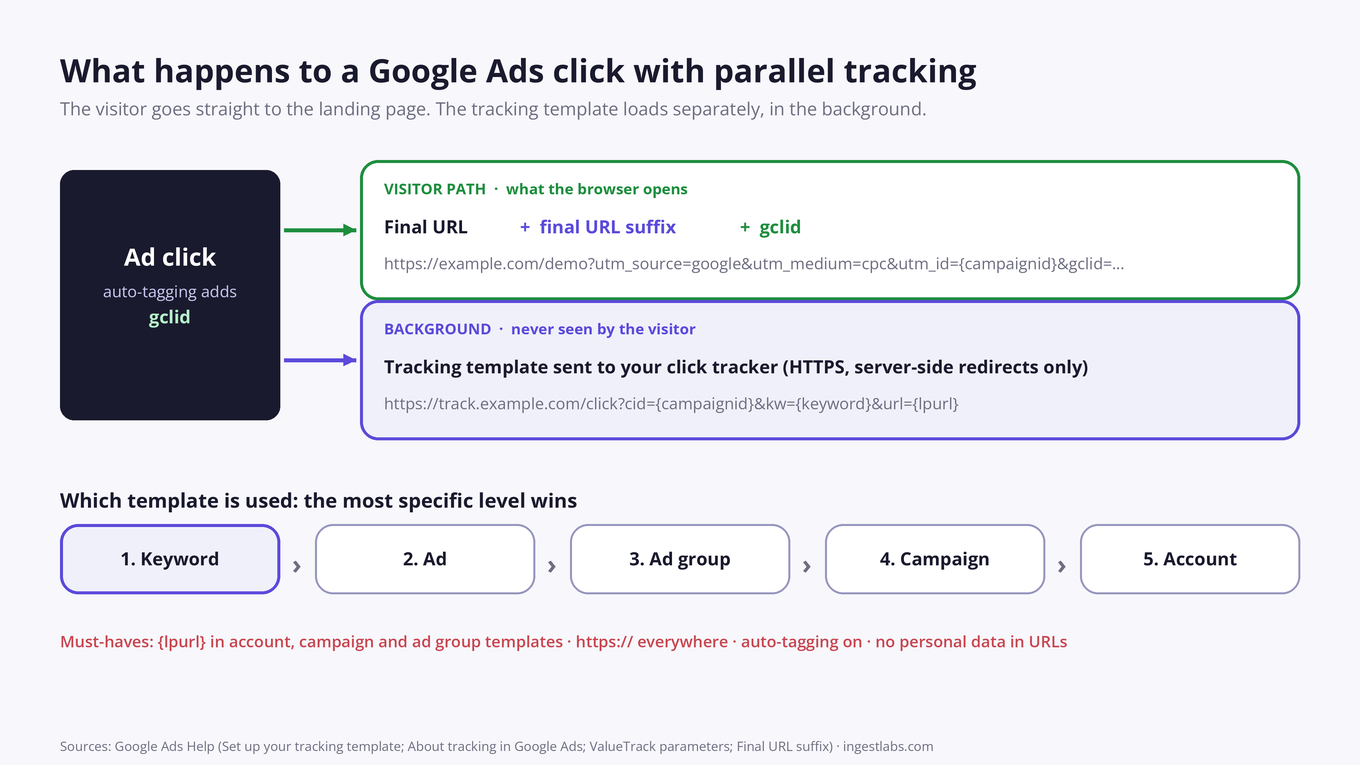
Before parallel tracking, a click went to your tracking URL first, then redirected to the landing page. Each redirect added load time.
With parallel tracking, the browser opens the final URL straight away while the tracking template URL loads in the background. Google states that parallel tracking is the only click measurement method for all accounts, apart from Hotel campaigns, where it remains optional.
Three things follow from this:
-
Parameters in a tracking template don't reach your landing page when the template points at a click tracker. Put landing page parameters in the final URL suffix instead.
-
Every tracking URL must use HTTPS, and so must every redirect after it. Redirects must be server-side. JavaScript or meta-refresh redirects break the chain.
-
Check that your click tracker supports parallel tracking. Google recommends confirming this with your provider before you launch.
Where to set templates, and which one wins
| Level | Applies to | Priority |
|---|---|---|
| Keyword | Clicks from that keyword | 1 (most specific, used first) |
| Ad | That ad only | 2 |
| Ad group | All ads in the ad group | 3 |
| Campaign | All ads in the campaign | 4 |
| Account | All ads in the account | 5 (used only when no lower level is set) |
The final URL suffix follows the same idea. You can set it at the account, campaign, ad group, ad, keyword and dynamic ad target levels. Two exceptions: Masthead tracking templates must be set at the ad level, and Smart campaigns don't support account-level tracking templates. In the campaign or ad group table, the "Tracking template source" column shows which template is actually in use.
How to set up a tracking template, step by step
-
Turn on auto-tagging first. Go to Admin, Account settings, Auto-tagging and tick "Tag the URL that people click through from my ad".
-
Decide what goes where. Click-tracker URLs go in the tracking template. UTMs and anything your site reads go in the final URL suffix.
-
Start at the account level. Go to Admin, Account settings, Tracking. Enter the tracking template and the final URL suffix there, so every campaign inherits them.
-
Override only where needed. Add a campaign or ad group template only when that campaign uses a different tracker or needs extra parameters.
-
Build the template with {lpurl}. Templates at the account, campaign and ad group level must include a parameter that inserts the final URL, such as {lpurl}. Without it, the landing page URL breaks.
-
Use HTTPS throughout. Start the template with https:// and confirm your tracker's redirects are HTTPS and server-side.
-
Test before saving. Select Test next to the template. Check that the final URL loads and that every ValueTrack parameter is filled in.
-
Check live clicks. Template changes can take 24 to 48 hours to take effect. After that, click a live ad, or use Ad Preview, and confirm the parameters reach your tracker and landing page.
Example templates and suffixes
| Goal | Field | Example |
|---|---|---|
| Send click data to a third-party tracker | Tracking template | https://track.example.com/click?cid={campaignid}&agid={adgroupid}&kw={keyword}&url={lpurl} |
| Pass UTMs to the landing page for a CRM or non-Google analytics tool | Final URL suffix | utm_source=google&utm_medium=cpc&utm_id={campaignid}&utm_term={keyword}&utm_content={creative} |
| Record match type and device for your own reports | Final URL suffix | matchtype={matchtype}&device={device} |
| Add an internal campaign code that Google doesn't supply | Custom parameter plus suffix | Set {_promo} to bfcm26 on the campaign, then add promo={_promo} to the suffix |
Two formatting points:
-
Don't add "?" or "&" at the start of a final URL suffix. Google adds the right separator for you.
-
{lpurl} is escaped when it isn't at the start of the template. Characters such as ?, = and # are encoded so the landing page URL can be passed safely to a tracker. Don't encode it again yourself, or the tracker receives a double-encoded URL.
If GA4 is linked to Google Ads with auto-tagging on, GA4 takes campaign data from gclid and ignores manual UTMs. Add UTMs only if another tool needs them. For UTM naming rules, see our attribution tags guide.
ValueTrack parameters worth knowing
| Parameter | What it returns | Notes |
|---|---|---|
| {lpurl} | The final URL | Required in account, campaign and ad group templates |
| {campaignid} | Campaign ID | Most useful in account-level templates |
| {adgroupid} | Ad group ID | |
| {creative} | The ad's unique ID | Returns an ID, not the headline text |
| {keyword} | The matched keyword from your account | On Search, this is your keyword, not the user's search query |
| {matchtype} | e (exact), p (phrase) or b (broad) | |
| {targetid} | ID of the keyword, dynamic search target or audience that triggered the ad | Prefixed, for example kwd- or aud- |
| {network} | g (Google Search), s (search partner), d (Display), ytv (YouTube), vp (video partners) | |
| {device} | m (mobile), t (tablet) or c (computer) | |
| {loc_physical_ms} | Location ID of the click | Map it with Google's geotargets file |
| {gclid} | The Google click ID | Useful for passing the click ID to a third-party tracker |
Check Google's Performance Max ValueTrack table before you rely on a parameter there, because some parameters return no value in that campaign type.
Common mistakes and how to fix them
| Mistake | What happens | Fix |
|---|---|---|
| UTMs placed in a tracking template that points at a click tracker | UTMs never reach the landing page | Move them to the final URL suffix |
| No {lpurl} in an account, campaign or ad group template | The landing page URL breaks | Include {lpurl} or another URL insertion parameter |
| HTTP tracker or client-side redirect | Clicks aren't measured under parallel tracking | Use HTTPS and server-side redirects throughout |
| Manually encoding {lpurl} | The tracker receives a double-encoded URL | Let Google handle escaping |
| Templates set at several levels without a record | The wrong tracker fires for some campaigns | Check the "Tracking template source" column; remove stale overrides |
| Auto-tagging turned off "because UTMs are set" | Conversion tracking and GA4 Google Ads reports lose detail | Keep auto-tagging on |
| Personal data in URL parameters | Breaks Google policy and leaks data to logs and third parties | Never put emails, phone numbers or names in URLs |
| Reading {creative} as the headline | Reports show numbers instead of ad text | Join the ad ID to Google Ads ad data |
How to check it's working
-
Test button: confirms the template builds a valid URL before you save.
-
Tracking template source column: shows which level's template applies to each campaign or ad group.
-
Tracker logs: click counts in your third-party tracker should be close to Google Ads clicks for the same period. A large gap usually means an HTTP redirect or a tracker that doesn't support parallel tracking.
-
Landing page URL: open a live ad click and confirm gclid and the final URL suffix parameters are present.
-
CRM records: submit a test lead and confirm gclid and UTMs are saved with it, so offline conversions can be uploaded later.
Where Ingest Labs fits
Tracking templates get parameters onto the URL. The next step is making sure those values are captured and kept:
-
Ingest IQ reads gclid, gbraid, wbraid and suffix parameters server-side on the first request, then sends conversions to Google Ads and GA4 from your own domain.
-
Ingest ID keeps the click ID attached to a first-party identifier, so a lead that converts weeks later can still be uploaded as an offline conversion.
-
Event IQ flags missing click IDs, empty ValueTrack values and broken parameters before they reach your reports.
For how Google credits those conversions, see Google attribution models explained.
FAQ
What is a tracking template in Google Ads?
A tracking template is a URL pattern that Google Ads fills in when someone clicks an ad. It uses ValueTrack parameters, such as {campaignid} and {keyword}, to record where the click came from. With parallel tracking, the template URL loads in the background while the visitor goes straight to the landing page.
Should I put UTMs in the tracking template or the final URL suffix?
Use the final URL suffix. With parallel tracking, parameters in a template that points at a click tracker don't reach your landing page. The final URL suffix appends parameters directly to the landing page URL. If you only report in GA4, auto-tagging is usually enough without UTMs.
Which tracking template takes priority?
The most specific one. Google applies keyword-level templates first, then ad, ad group, campaign and finally account. Use the "Tracking template source" column to see which template applies.
Does a tracking template need {lpurl}?
Templates at the account, campaign and ad group level must include a parameter that inserts the final URL, such as {lpurl}. Without one, the landing page URL breaks.
Why are my third-party tracker clicks lower than Google Ads clicks?
The usual causes are an HTTP link somewhere in the redirect chain, client-side redirects, or a tracker that doesn't support parallel tracking. Every URL in the chain must use HTTPS and server-side redirects.
Sources
-
Google Ads Help, "Set up your tracking template" (accessed November 2026)
-
Google Ads Help, "About tracking in Google Ads" (accessed November 2026)
-
Google Ads Help, "Set up tracking with ValueTrack parameters" (accessed November 2026)
-
Google Ads Help, "Add a final URL suffix" (accessed November 2026)
-
Google Ads API documentation, "ValueTrack parameter mapping" and "ValueTrack parameters in Performance Max" (accessed November 2026)
-
Google Analytics Help, "[GA4] Benefits of Google Ads auto-tagging" (accessed November 2026)