What Is GCLID? Google Ads Click ID Explained (2026 Guide)
Updated November 23, 2026
Short answer: GCLID, the Google Click Identifier, is a unique, case-sensitive value that Google Ads adds to your landing page URL as ?gclid= when someone clicks your ad and auto-tagging is on. Auto-tagging is on by default for new accounts. The Google tag or Conversion Linker stores it in a first-party cookie, usually _gcl_aw, which typically lasts 90 days. Google Ads uses it to tie a later conversion back to the exact click, campaign and keyword. For leads that close offline, you save the GCLID in your CRM and import the sale, within 90 days of the click. Two things changed recently. On iOS 14 and later, Google may send wbraid or gbraid instead of a GCLID. And from June 15, 2026, new offline conversion imports go through the Data Manager API, not the Google Ads API. GCLID identifies a click, not a person, so it does not track users across devices.
What a GCLID is and how it works
A GCLID is a click-level identifier. Google generates a new one for every ad click and logs which account, campaign, ad group, keyword and ad it belongs to. The value itself is opaque: don't try to decode it, and store it exactly as received, because Google treats it as case-sensitive.
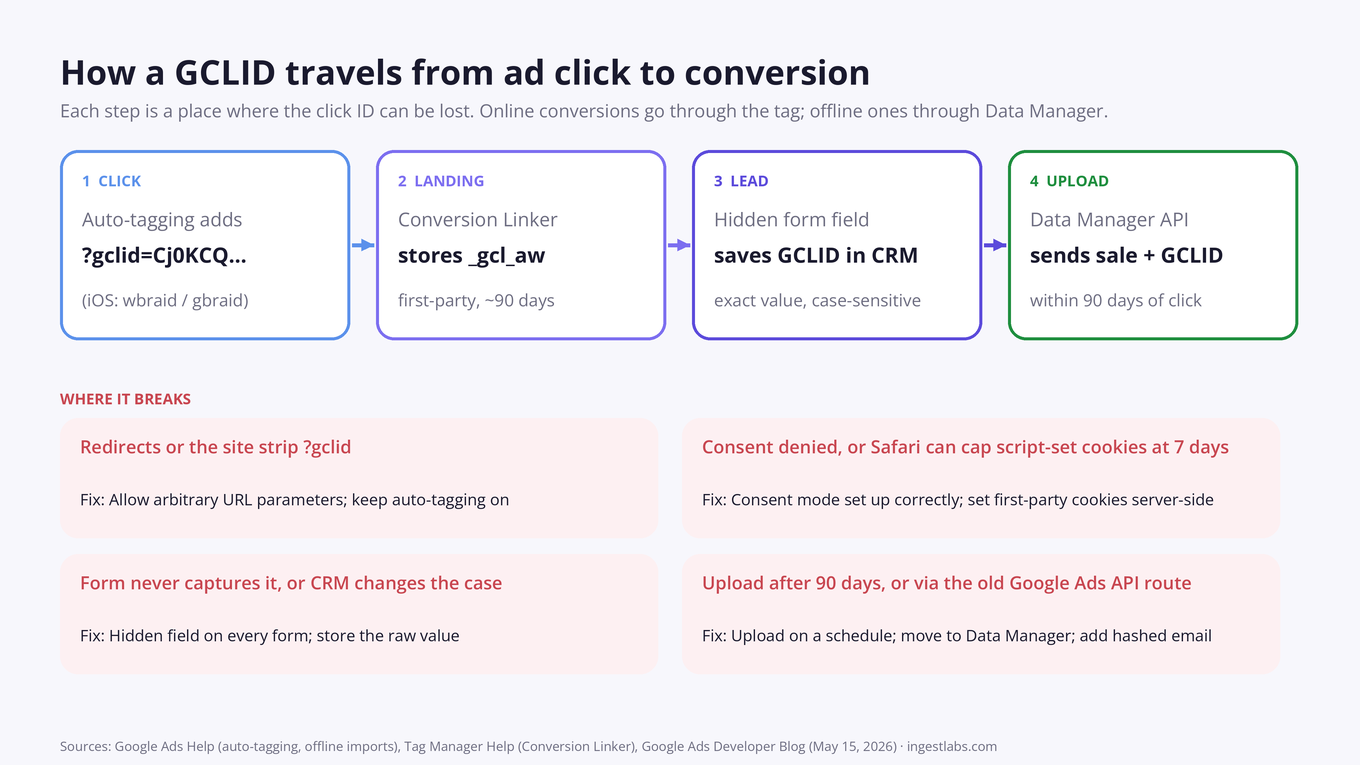
The journey of one click:
-
The click. A user clicks your ad. With auto-tagging on, Google appends the identifier:
https://www.example.com/shoes?gclid=Cj0KCQ... -
The landing page. The Google tag, or the Conversion Linker tag in Google Tag Manager, reads the parameter and stores it in a first-party cookie on your domain, named
_gcl_aw. -
The conversion. When the visitor buys or submits a form, your conversion tag reads the cookie and sends the GCLID with the conversion.
-
The match. Google Ads matches the GCLID to the original click and credits the campaign, ad group and keyword. Smart Bidding then learns from that conversion.
If the conversion happens later, in your CRM, on the phone or in a store, step 3 becomes an offline import: you send Google the GCLID and the conversion details.
GCLID compared with other click identifiers
| Identifier | Added by | When it's used | Notes |
|---|---|---|---|
gclid |
Google Ads auto-tagging | Most Google Ads clicks | Click-level; stored in _gcl_aw |
wbraid |
Google Ads auto-tagging | Clicks from iOS 14+ apps that lead to a website conversion | Introduced March 2021; aggregated, not user-level |
gbraid |
Google Ads auto-tagging | Web clicks that lead to iOS app conversions | Introduced May 2021; aggregated, not user-level |
dclid |
Campaign Manager 360 / Display & Video 360 | Display and video clicks in Google Marketing Platform | Used by Floodlight, not Google Ads conversion tags |
| UTM parameters | You, manually | Any campaign on any platform | Describe source and campaign; they don't identify a click |
Auto-tagging and UTMs can run together. In Google Analytics 4, auto-tagging data takes priority over manual tags for Google Ads traffic, so use UTMs for non-Google channels and keep auto-tagging on for Google Ads.
Where the GCLID is stored: the _gcl cookies
The Conversion Linker tag stores ad click information in first-party cookies named _gcl_*, set on your top-level domain at the root path.
| Cookie | What it holds | Typical lifetime |
|---|---|---|
_gcl_aw |
GCLID from a Google Ads click | 90 days |
_gcl_dc |
Click ID from Campaign Manager 360 / DV360 | 90 days |
_gcl_au |
Identifier used by Google Ads measurement | 90 days |
_gcl_gb, _gcl_ag, _gcl_gs |
Other Google ad click and attribution data | 90 days |
Three things can shorten or block that storage:
-
Browser limits. Safari can cap cookies set by JavaScript to 7 days, so a click on day 1 may be forgotten before a day-10 purchase. See our guide to browser cookie limits.
-
Consent. Under Google consent mode, when
ad_storageis denied, no new advertising cookies are written and existing ones are not read. Google still receives the full page URL, including the GCLID, but only to model conversions. -
Lost parameters. Redirects, link shorteners and some site frameworks strip unknown URL parameters before the tag can read them.
How to capture GCLID for offline and CRM conversions
If leads become customers days or weeks later, you need the GCLID stored next to the lead in your CRM.
-
Confirm auto-tagging is on. In Google Ads, go to Settings › Account settings › Auto-tagging and check it says "Yes". With cross-account conversion tracking, turn it on in each child account.
-
Read the GCLID on landing. Take it from the URL, or from the
_gcl_awcookie on later pages, and also capturegbraidandwbraidif present. -
Pass it into the form. Add a hidden field to every lead form and fill it with the GCLID. Google's own setup guide provides a script for this.
-
Store it with the lead. Map the hidden field to a CRM field. Keep the value exactly as received, without changing case.
-
Send conversions back. When the lead qualifies or closes, upload the GCLID, conversion name, time and value through Google Ads Data Manager or the Data Manager API.
Offline import deadlines and limits
| Rule | Limit |
|---|---|
| Upload a GCLID-based conversion | Within 90 days of the click |
| Upload an enhanced conversions for leads conversion (hashed user data) | Within 63 days of the click |
| Adjust or restate a conversion's value | Up to 55 days after the conversion was recorded |
| Wait after creating a new conversion action | 4–6 hours before the first upload |
| Data Manager look-back (files, Sheets, SFTP, cloud storage) | Last 90 days each run |
| Data Manager look-back (BigQuery, Snowflake, Redshift, MySQL, PostgreSQL) | Last 14 days each run |
Conversions uploaded more than 90 days after the click are not imported. Duplicate uploads with the same GCLID, conversion name and time count only once.
What changed in 2026: Data Manager and enhanced conversions for leads
Google is moving away from GCLID-only offline imports.
-
June 15, 2026: Google announced on May 15, 2026 that from June 15, 2026 the Google Ads API stopped accepting new adopters of offline conversion imports, including enhanced conversions for leads. The Data Manager API is now the main API for importing offline conversions. Teams that already imported offline conversions between December 2025 and May 2026 can keep using the Google Ads API while they migrate.
-
Enhanced conversions for leads: Google calls GCLID-only offline import a legacy feature. Enhanced conversions for leads also sends hashed customer data, such as email addresses, with the conversion. That lets Google match conversions when the GCLID is missing, and supports cross-device and engaged-view conversions.
-
April 2026: Google Ads began accepting user-provided data from website tags, Data Manager and API connections together, so you no longer choose a single implementation method.
GCLID still matters. It is the most precise match key when you have it. In 2026 it works best alongside hashed first-party data, not on its own.
Why GCLIDs go missing, and how to fix it
| Symptom | Likely cause | Fix |
|---|---|---|
No gclid in landing page URLs |
Auto-tagging off, or the site strips unknown parameters | Turn on auto-tagging; allow arbitrary URL parameters on your site |
GCLID in the URL but no _gcl_aw cookie |
No Conversion Linker or Google tag on the landing page, or consent denied | Add Conversion Linker to all landing pages; check consent mode setup |
| Conversions lost when users move to a checkout or booking domain | Cookies don't cross domains | Use the Google tag domain linker or Conversion Linker's cross-domain setting |
| Offline upload errors saying the GCLID can't be found | Value changed (case, truncation) or uploaded to the wrong account | Store the raw value; upload to the account that owns the click |
| iOS conversions under-reported | wbraid/gbraid sent instead of GCLID and not captured |
Capture and upload all three identifiers |
| Late conversions missing | Click more than 90 days before upload, or cookie expired early in Safari | Upload faster; add enhanced conversions for leads; set first-party cookies server-side |
What GCLID can't do
The earlier version of this page said GCLID tracks users across devices and links Search, YouTube and Display. It doesn't. A GCLID belongs to one click on one device. If a user clicks on a phone and buys on a laptop, the laptop has no GCLID. Google Ads covers some of that gap with signed-in Google data, modeling and enhanced conversions. Your own cross-device view depends on a first-party identifier, such as a login or hashed email. See our cross-device attribution guide.
How Ingest Labs fits
Ingest IQ captures gclid, gbraid and wbraid on landing and sends conversions server-side with the click ID attached, so they reach Google Ads even when browser storage is cleared or blocked. Ingest ID links the click to a durable first-party identifier and, after sign-up, to hashed customer data, the input enhanced conversions for leads needs. See also our guide to Google Ads attribution models and our complete guide to server-side tracking.
FAQ
What is a GCLID in Google Ads?
GCLID, or Google Click Identifier, is a unique value Google Ads adds to your landing page URL as gclid= when someone clicks your ad with auto-tagging turned on. It links that click to the campaign, ad group, keyword and ad. Google tags store it in a first-party cookie, _gcl_aw, so a later conversion can be credited to the original click.
How long does a GCLID last?
The _gcl_aw cookie that stores the GCLID typically lasts 90 days, matching Google Ads' maximum click-through conversion window for Search, Shopping and Display. Browsers can cut that short. Safari can cap cookies set by JavaScript to 7 days. For offline imports, you must upload a GCLID-based conversion within 90 days of the click.
What are wbraid and gbraid?
They are Google Ads click parameters used on iOS 14 and later, where Google doesn't use the GCLID without user consent. wbraid measures website conversions from clicks in iOS apps, and gbraid measures app conversions. Both are aggregated rather than user-level. Capture them alongside the GCLID, or iOS conversions will be under-reported.
How do I capture GCLID in my CRM?
Keep auto-tagging on, then read the GCLID from the landing page URL or the _gcl_aw cookie. Add it to a hidden field in each lead form, and map that field to a CRM property. When the lead converts, upload the GCLID with the conversion name, time and value through Google Ads Data Manager within 90 days of the click.
Can I still import offline conversions through the Google Ads API?
From June 15, 2026, the Google Ads API no longer accepts new adopters of offline conversion imports, including enhanced conversions for leads. The Data Manager API is now the main route. Developers who imported offline conversions between December 2025 and May 2026 can keep using the Google Ads API while they migrate.
Sources
-
Google Ads Help, "About auto-tagging" and "Auto-tagging: Definition" (checked November 23, 2026)
-
Google Ads Help, "How Google Ads tracks website conversions" (checked November 23, 2026)
-
Google Tag Manager Help, "Conversion linker" (checked November 23, 2026)
-
Google Ads Help, "Updates to iOS 14 campaign measurement"; Google Analytics Help, "Updates to iOS 14+ campaign measurement" (checked November 23, 2026)
-
Google Ads Help, "Set up offline conversions using Google click ID (GCLID)," "Offline conversion imports FAQs," "Guidelines for importing offline conversions" and "About offline conversion imports" (checked November 23, 2026)
-
Google Ads Developer Blog, "Changes to Offline Click Conversion Import Support in the Google Ads API," May 15, 2026
-
Google Ads Help, "Upgrade offline conversion import to enhanced conversion for leads" and "About enhanced conversions for leads" (checked November 23, 2026)
-
Google, "Set up and manage consent" and "Consent mode overview" (checked November 23, 2026)
-
CookieYes, "Google Ads cookies" (checked November 23, 2026), for
_gclcookie lifetimes