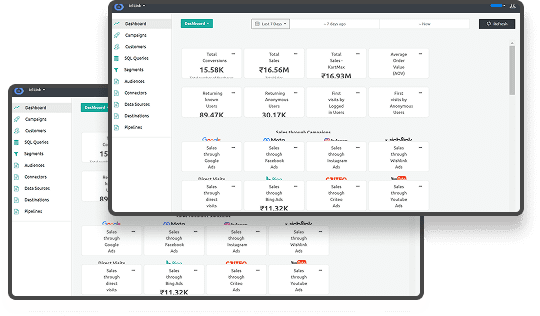





Are you confident that you truly understand how your Shopify store is performing? With Shopify generating $8.9 billion in revenue in 2024, even small tracking errors can cost thousands in missed insights.
If you don’t know how customers navigate your store, optimize marketing spend, or identify drop-offs, you’re flying blind. Without clear data, it's hard to know which pages drive purchases or where customers drop off in the checkout. And, how can you make smarter decisions if your data isn’t accurate or complete?
That's why this blog shows you how to add Google Analytics to Shopify, not just one, but with four different methods. Read ahead to know which setup fits your store and how to avoid the most common tracking mistakes.
Key Highlights:
- Setting up GA4 on Shopify ensures accurate tracking of purchases, checkouts, and overall store performance.
- There are four main setup methods: Google Tag Manager, GTAG, Google & YouTube App, and Shopify apps.
- Choosing the right GA4 method depends on technical skill, flexibility needs, and tracking goals.
- Avoid common mistakes like duplicate tags, missing checkout events, and unfiltered internal traffic for reliable data.
So, What Is Google Analytics (GA4)?
Google Analytics 4, or GA4, is Google’s latest analytics platform built to track user behavior across websites and apps using an event-based model.
Instead of focusing only on sessions and pageviews, GA4 tracks meaningful actions like purchases, scrolls, and form submissions. This approach helps you understand how customers actually interact with your Shopify store, even as cookies and browser tracking continue to fade.
Once you know what GA4 is, let’s talk about why it matters specifically for Shopify stores.
Why Do You Need Google Analytics For Your Shopify Store?
Running a Shopify store without proper analytics often means making decisions based on assumptions instead of data. GA4 gives you visibility into what drives revenue, where users drop off, and which channels deserve more attention.
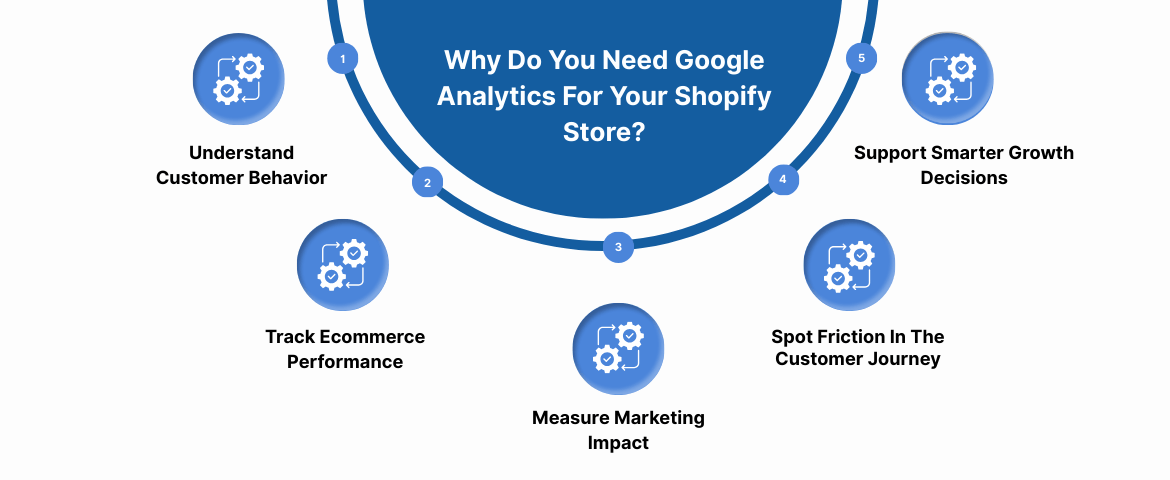
Here’s how Google Analytics supports better Shopify decisions:
- Understand Customer Behavior: See how visitors move through product pages, collections, and checkout steps across devices. This helps you identify what encourages purchases and what causes users to leave.
- Track Ecommerce Performance: Monitor revenue, conversion rates, average order value, and traffic sources from a single dashboard. This gives you a reliable view of how your store performs over time.
- Measure Marketing Impact: Identify which campaigns, channels, and ads lead to actual purchases instead of surface-level clicks. This helps you focus spending on efforts that drive measurable results.
- Spot Friction In The Customer Journey: Detect issues like cart abandonment, repeated exits, or stalled checkout steps. These insights help you fix experience gaps before they affect revenue.
- Support Smarter Growth Decisions: Use data-backed insights to plan promotions, manage inventory, and adjust pricing strategies. This reduces guesswork and supports sustainable growth across your Shopify store.
With a clear understanding of why GA4 matters, you can move ahead to explore the different ways to connect it to your Shopify store.
Also Read: Guide to Effective Shopify API Integration
How To Add Google Analytics To Shopify: 4 Methods
There are several ways to connect GA4 with Shopify, but not every option suits growing businesses equally. Some methods offer control and accuracy, while others trade flexibility for speed.
Before getting into the steps, here’s a quick look to help you understand how these methods differ:
| GA4 Setup Method | Typical Use Case |
| Google Tag Manager (GTM) | Used when stores need structured, flexible tracking |
| GTAG (Global Site Tag) | Works for direct, code-based implementations |
| Google & YouTube App | Chosen for fast, low-effort GA4 setup |
| Shopify Analytics Apps | Used for performance summaries and insights |
Method 1: Use Google Tag Manager
Google Tag Manager gives you the most control over how tracking works across your Shopify store. This approach works best if you care about clean data, event accuracy, and future server-side upgrades.
How this method works:
You place a single Tag Manager container on your Shopify store. From there, you manage GA4 tags, events, and updates without editing theme files repeatedly.
Step-by-step overview:
- Step 1: Create a Google Tag Manager container
Set up a GTM account and create a web container for your Shopify store. Google will provide two container scripts. - Step 2: Prepare your Shopify store for GTM
Ensure your store uses Shopify’s checkout extensibility and customer events system. This helps keep tracking consistent across storefront and checkout pages. - Step 3: Add GTM scripts to Shopify
Place the main GTM script inside your theme’s head section. Add the customer events script using Shopify’s custom pixel settings for cleaner event handling. - Step 4: Configure GA4 inside GTM
Create a Google tag using your GA4 Measurement ID. Disable automatic page views and define triggers to control when events fire. - Step 5: Set up event tracking
Use GTM to track page views, product views, add-to-cart actions, checkouts, and purchases. Test everything using preview and real-time reports before publishing.
Method 2: Use Global Site Tag
The Global Site Tag, often called gtag, allows direct installation of GA4 tracking code. You manage tracking by placing JavaScript directly into your Shopify theme.
How this method works:
You paste the GA4 script into your theme file, usually inside the head section. GA4 then tracks page views and configured events from that script.
Step-by-step overview:
- Step 1: Get your GA4 tracking code
Access your GA4 property and copy the GTAG script provided during setup. - Step 2: Add the script to your Shopify theme
Paste the GTAG code inside the head section of your theme.liquid file, below the existing meta tags. - Step 3: Save and publish changes
Confirm the script loads across all storefront pages and does not conflict with other tracking tools. - Step 4: Validate tracking in GA4
Use GA4’s real-time and debug views to confirm page views and ecommerce events appear correctly.
Method 3: Use the Google and YouTube Channel App
The Google and YouTube Channel App offers a faster way to add Google Analytics to Shopify. It suits teams that want GA4 running quickly without touching code.
How this method works:
You connect your Shopify store directly to a GA4 property through an official Google app. The app handles basic ecommerce events automatically.
Step-by-step overview:
- Step 1: Install the app from the Shopify App Store
Search for the Google & YouTube app and install it from your Shopify admin. - Step 2: Connect your Google account
Link the Google account that manages your GA4 property and approve required permissions. - Step 3: Select or create a GA4 property
Choose an existing GA4 property or let the app create one automatically. - Step 4: Verify data collection
Check GA4 real-time reports to confirm visits and ecommerce events are tracked.
Method 4: Use Shopify Analytics Apps
Shopify analytics apps provide reporting dashboards built specifically for ecommerce teams. These tools summarize sales, customer behavior, and performance metrics without deep customization.
Most apps connect easily to your Shopify store and require little setup. However, they often rely on existing tracking sources and offer limited flexibility for custom event measurement.
All these methods help you add Google Analytics to Shopify, but the right fit depends on how your store tracks and uses data.
Which Google Analytics Setup Option Is Best For You?
Once you understand the available methods, the real question becomes which setup fits your business today and tomorrow. There is no single right answer because every Shopify store differs in size, skills, and data expectations.
If your goal is speed and minimal setup, simpler options work. If accuracy, flexibility, and future-proof tracking matter more, advanced setups make sense.
Here’s how to think about each option in practical terms:
- How critical is accurate purchase and funnel data for your decisions?
- Do you have internal technical support or agency help available?
- Are privacy and future cookie changes already a concern for your business?
Your answers point you toward the right option.
Comparing GA4 setup options:
| Setup Method | Best Fit For | Setup Difficulty | Main Tradeoff |
| Google Tag Manager | Growing teams needing control | Moderate to High | Requires careful configuration |
| Global Site Tag | Developer-led environments | Medium | Manual event setup |
| Google & YouTube App | Standard stores and quick setups | Easy | Limited customization |
| Shopify Analytics Apps | Teams wanting simplicity | Easy | Paid and less flexible |
When each option makes sense:
- Choose Google Tag Manager if:
You want structured tracking, cleaner event control, and room to improve accuracy over time. This option suits teams that care about reliable reporting and plan to refine tracking as the store grows. - Choose the Google and YouTube App if:
You need GA4 running quickly with minimal setup. This works well for standard ecommerce tracking, but troubleshooting remains limited if issues appear. - Choose Global Site Tag if:
Your developers prefer direct code-based control and handle event tracking manually. This approach rarely fits marketing-led teams due to ongoing maintenance needs. - Choose Shopify analytics apps if:
You want dashboards and ecommerce insights without managing GA4 configurations yourself. These tools simplify reporting but reduce visibility into how data is collected.
With the right setup selected, the next step is avoiding mistakes that can quietly damage data quality.
Not sure if your GA4 setup will scale with privacy changes and higher traffic? Ingest Labs helps Shopify teams strengthen tracking accuracy and attribution after GA4 is in place, without adding technical complexity.
What Mistakes Should You Avoid When Setting Up GA4?
Even a correct setup can fail if small details are overlooked. Many stores think GA4 works fine until reports stop matching revenue or conversion expectations.
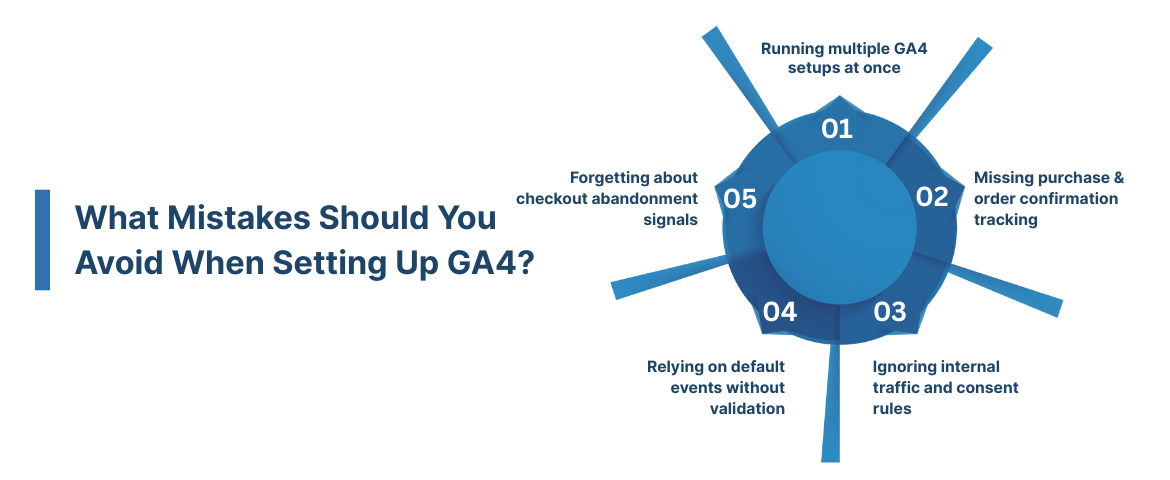
Here are the most common issues to watch for during GA4 setup:
Running multiple GA4 setups at once
One of the most common issues is duplicate tracking. If more than one GA4 method runs at the same time, events may fire twice.
What to check:
- Only one primary GA4 setup should handle page views and ecommerce events
- Disable unused tags or app-based tracking once a method is chosen
Missing purchase and order confirmation tracking
Revenue data depends on proper purchase events. If order confirmation pages are not tracked, GA4 reports will undercount sales.
What to confirm:
- Purchase events fire after successful checkout
- Events appear in GA4 real-time reports during test orders
Ignoring internal traffic and consent rules
Internal visits from employees can distort engagement and conversion data. Privacy rules also require consent handling in many North American regions.
What to set up:
- Filters or rules to exclude internal traffic
- Consent settings aligned with regional privacy requirements
Relying on default events without validation
GA4 offers enhanced measurement features, but defaults are not always accurate. Events like scrolls or outbound clicks may not reflect meaningful actions.
What to review:
- Validate events before using them for decisions
- Disable measurements that add noise rather than insight
Forgetting about checkout abandonment signals
Checkout drop-offs reveal where users hesitate before buying. If abandonment events are missing, optimization efforts lose direction.
What to track:
- Begin checkout
- Add payment info
- Purchase completion
Avoiding these issues keeps your GA4 data reliable as your store scales. With a clean setup in place, you are better positioned to add Google Analytics to Shopify in a way that supports growth, privacy, and confident decision-making.
Also Read: Best Shopify Marketplace Apps for 2025
How Ingest Labs Supports Accurate GA4 Tracking On Shopify
Once GA4 is live, many Shopify teams start noticing gaps in accuracy, attribution, and consent handling. These issues often surface as traffic grows and tracking becomes harder to manage across tools.
Ingest Labs helps address these challenges without adding ongoing manual work or frequent code changes. The platform works alongside GA4 to improve data quality while keeping privacy requirements in check.
Here’s how Ingest Labs supports you:
Ingest IQ: Server-Side Tracking and Tag Control
- Reduces data loss caused by client-side GA4 limitations
- Improves accuracy for purchases, checkouts, and conversion events
- Minimizes dependence on fragile browser scripts
- Keeps event tracking consistent across devices and sessions
Ingest ID: First-Party Identity and Attribution
- Assigns a first-party identifier to each visitor
- Connects users, sessions, and conversions across channels
- Improves attribution in cookieless environments
Event IQ: Privacy and Data Intelligence
- Centralizes consent management for GDPR and CCPA
- Ensures tracking respects regional privacy requirements
- Unifies GA4, marketing, and internal data for clearer insights
Together, these layers help keep GA4 data reliable as your Shopify store grows.
Final Verdict
Setting up Google Analytics 4 on Shopify is key to understanding your customers and measuring your store’s performance. Choosing the right method, from GTM, GTAG, to the Shopify analytics app, depends on your team’s technical skills and tracking needs.
Avoid duplicate tags, missing purchase events, and consent issues to keep your data reliable when you add Google Analytics to Shopify. Combining this with server-side tracking and first-party identifiers ensures your data stays consistent across devices, sessions, and changing privacy rules.
To make your Shopify GA4 tracking truly reliable and privacy-compliant, Ingest Labs helps you strengthen attribution and improve accuracy. Contact us today and get actionable insights without adding extra technical work.
FAQs
1. Does Shopify give Analytics?
Yes, Shopify provides built-in analytics that tracks sales, traffic, and customer behavior. However, these reports are basic compared to the advanced tracking and insights offered by GA4.
2. Where do you add the Google Analytics tracking code in Shopify?
You add the GA4 tracking code in your Shopify theme’s <head> section, usually in the theme.liquid file. Alternatively, you can implement it via Google Tag Manager or the Google & YouTube Channel App for cleaner, more manageable tracking.
3. Is Google Analytics a necessary cookie?
No, Google Analytics itself is not a “necessary” cookie. It collects behavioral data to analyze traffic and conversions, and its use usually requires user consent under privacy regulations like GDPR or CCPA.
4. Is Google Analytics better than Shopify Analytics?
Google Analytics offers more detailed reporting, multi-channel tracking, and custom event monitoring, making it better for in-depth marketing analysis. Shopify Analytics is simpler and suited for basic store performance monitoring.
5. How can we enable Google Analytics on checkout pages?
For Shopify Plus stores, GA4 can be added directly to checkout pages via the theme or GTM integration. Non-Plus stores may need server-side tracking or third-party tools like Ingest Labs to capture checkout events accurately.